

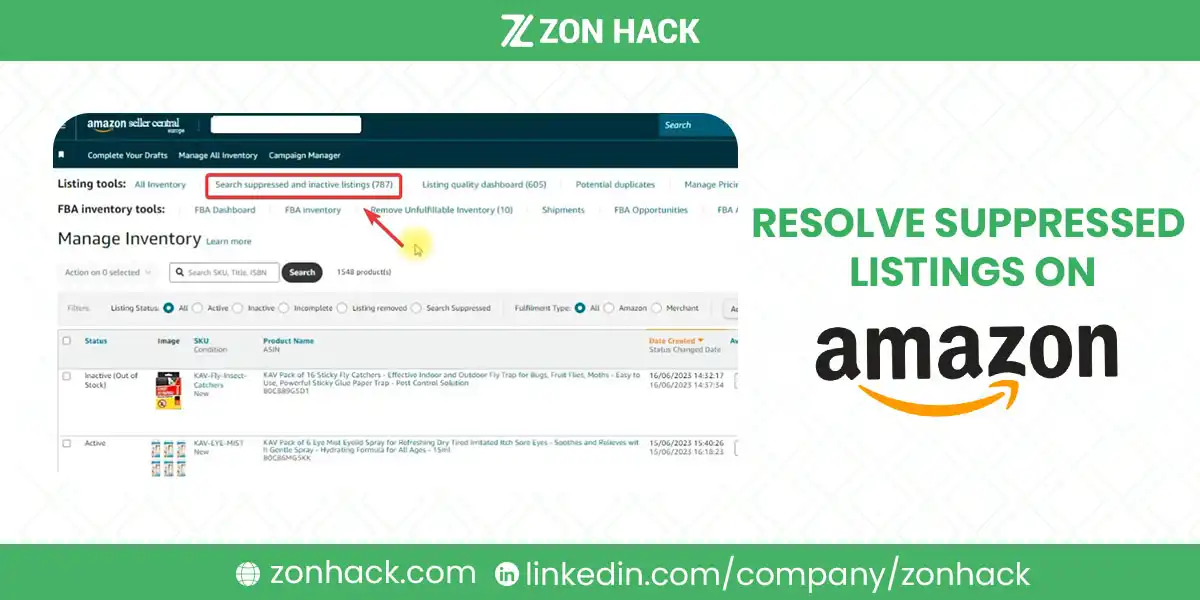
Suppressed listings on Amazon are products hidden from search because their content does not meet Amazon’s requirements. Fixing one is straightforward. Fixing forty, and stopping them coming back, is a different job, and it is the one this guide covers.
If you have a single listing that went dark and want to diagnose it, our guide to inactive and suppressed listings walks through the four states and the fix for each. This guide starts where that one ends: catalog hygiene, meaning finding every suppression you have, fixing them efficiently, and building the routine that keeps the number near zero.
The distinction matters because these are different problems. One listing suppressed is an incident. Forty listings suppressed is a process failure, and treating it as forty incidents guarantees a repeat.
We manage catalog health across client accounts as an Amazon SPN Verified Partner. Below is how to do it at scale.
Step one: find all of them, not just the obvious ones
Suppressions hide in more places than sellers check.
The Suppressed tab under Manage Inventory is the obvious one. It is also not complete, since it shows only listings Amazon has actively hidden and says nothing about the ones drifting toward that state or the ones that quietly lost visibility without a formal suppression ever being recorded.
The Listing Quality Dashboard is the tool almost nobody opens, and it is the most useful thing here. It flags listings with content problems before they become suppressions, alongside ones already affected. Working from this list is preventive rather than reactive.
Stranded Inventory, under Inventory, shows FBA stock with no active listing. These never appear in a suppression list because the listing is not there to be suppressed.
Your own traffic data. Sort sessions by ASIN over 90 days and look for listings whose traffic fell off a cliff and never recovered. Our guide to interpreting business reports covers pulling that. In our experience this finds problems the dashboards missed, because a listing can lose visibility without being formally suppressed.
Export all four to one spreadsheet before fixing anything. I’d resist the urge to start editing immediately, because the pattern in the combined list is the thing that saves you the next round.
Resolving suppressed listings on Amazon: read the pattern first
This is the step that separates catalog work from listing work.
Sort your combined list by suppression reason and by date. Three patterns show up repeatedly.
All the same reason. 20 listings missing the same attribute means a template problem or a category requirement that changed. In our experience this pattern holds across client catalogs almost every time. Fix the template, then apply it once.
All the same date. Suppressions clustered on one morning are one bad flat file. Find the file. Correct it. Reupload, rather than editing 20 listings by hand and learning nothing about why they broke.
All the same category. Amazon periodically tightens requirements per category, and everything you sell in that category falls over together. Check the current category style guide before assuming your data is wrong.
Scattered, various reasons, various dates. Genuine drift, which means no routine exists. That is the case for the monitoring section below rather than for a fix.
Step three: fix in bulk, carefully
Use a flat file for anything above roughly 10 listings. Download the category listing report, correct the values, and upload. Editing one at a time is fine for 5. It is a poor use of a day for 50, and in my experience the manual route also introduces its own errors around listing 30.
Validate on two rows first. A systematic error in a flat file produces the same problem at scale, which is how sellers turn a suppression problem into a bigger suppression problem. Our guide to common listing errors covers reading upload errors properly.
Fix the source, not just the listing. If your product data lives in a spreadsheet or a PIM, correct it there too. Otherwise the next upload reverses your work, which I have watched happen more than once.
Do images separately. Image suppressions need new files rather than data edits. Batch them into their own task.
Confirm before moving on. Suppressed listings usually return within a few hours of a correct fix. If a batch has not returned by the next day, the fix did not address what Amazon flagged.
Step four: build the routine that prevents recurrence
The whole point. Everything above is remedial.
Check the Listing Quality Dashboard weekly. 15 minutes. I’d put it in the calendar rather than trusting anyone to remember, because it surfaces problems before they cost you traffic and that is the entire value.
Watch for category requirement changes. Amazon updates requirements, and a listing compliant last year can fall out of compliance without you touching it. A quarterly review of category style guides for your main categories is enough.
Fill optional attributes, not just required ones. Listings created with the bare minimum are the first to fail when requirements tighten. Completing optional fields is genuinely protective as well as good for discoverability.
Standardize your listing template per category. One correct template applied consistently beats fifty listings each built slightly differently.
Validate every bulk operation. Two rows. Then the rest. Every time, including the file you are certain about, because the file you are certain about is the one that takes down 40 listings on a Friday afternoon.
Set a monthly catalog audit. Suppressed count, stranded count, listing quality score, and any ASIN whose sessions dropped materially. Half an hour, monthly, catches almost everything while it is still cheap.
In our experience sellers who run that routine keep their suppressed count in single figures permanently. Sellers who do not rediscover this problem every quarter and treat it as bad luck each time.
Getting the catalog clean once
If your suppressed count is already large, a one-off cleanup is worth scheduling properly rather than chipping at it.
Block a day, not an hour. Half-finished catalog work is worse than untouched catalog work, because a week later you cannot tell which listings you corrected, which you started, and which you have not looked at.
Order by traffic, not by ease. Sort the affected ASINs by sessions before suppression and start at the top. The listing that was earning most is the one costing you most while it sits hidden.
Batch by fix type. All the missing-attribute listings together, all the image problems together, all the category mismatches together. Switching between fix types is where mistakes creep in.
Record what you changed. A simple log of ASIN, reason, and fix takes minutes and tells you in three months whether the same listings keep returning, which is a different problem from new ones appearing.
Then set the routine the same day, while the cost is fresh. In our experience a cleanup without a routine attached simply buys you a quiet quarter.
What to do about the ones you cannot fix
Some listings resist everything, and it is worth recognizing when to stop.
The data is not yours to change. On a shared ASIN, catalog attributes may be contributed by the brand or another seller. Editing your offer will not change them. Contribution disputes go through Seller Support with evidence, or through Brand Registry if you own the brand.
The suppression is really a policy problem. If Amazon has removed rather than hidden the listing, no amount of content editing helps. Our guides to appealing a policy violation and compliance certificates cover that route.
The listing is not worth the effort. A suppressed ASIN with negligible traffic and no inventory may simply be one to close rather than restore. I’d rather spend the hour on the listing that earns.
If you would rather have catalog health monitored than periodically rediscovered, that sits inside our account management service, and our listing service covers rebuilding listings properly rather than patching them.
FAQ
How do I find all my suppressed listings on Amazon?
Check four places rather than one: the Suppressed tab under Manage Inventory, the Listing Quality Dashboard which flags problems before suppression, the Stranded Inventory page, and your own session data for listings whose traffic collapsed without a formal suppression.
How do I fix suppressed listings in bulk?
Download the category listing report, correct the values in the flat file, validate on two rows, then upload the rest. Fix the source data in your own system too, otherwise your next routine upload reverses the correction.
Why do my listings keep getting suppressed?
Usually a process failure rather than bad luck: bulk edits uploaded without validation, no routine check of the Listing Quality Dashboard, listings built with only the minimum required attributes, or category requirements that changed without anyone noticing.
What is the Listing Quality Dashboard?
A Seller Central tool that flags listings with content and data problems, including ones not yet suppressed. Reviewing it weekly is preventive rather than reactive and is the single most useful habit for keeping a catalog healthy.
How long does a suppressed listing take to come back?
Usually a few hours after a correct fix. If a batch has not returned by the next day, the change did not address what Amazon actually flagged, so reread the suppression reason rather than editing further.
Should I fix every suppressed listing?
Not necessarily. A suppressed ASIN with negligible traffic and no inventory may be worth closing rather than restoring. Concentrate effort on listings that earn, and on the process failure that produced the batch in the first place.
Last updated: August 29, 2026. Amazon’s listing requirements, category style guides, and Seller Central tools change. The suppression reason shown in your own account is the authoritative explanation for any individual listing.